Campaigns 🟡 PREVIEW - Marketing
What it is
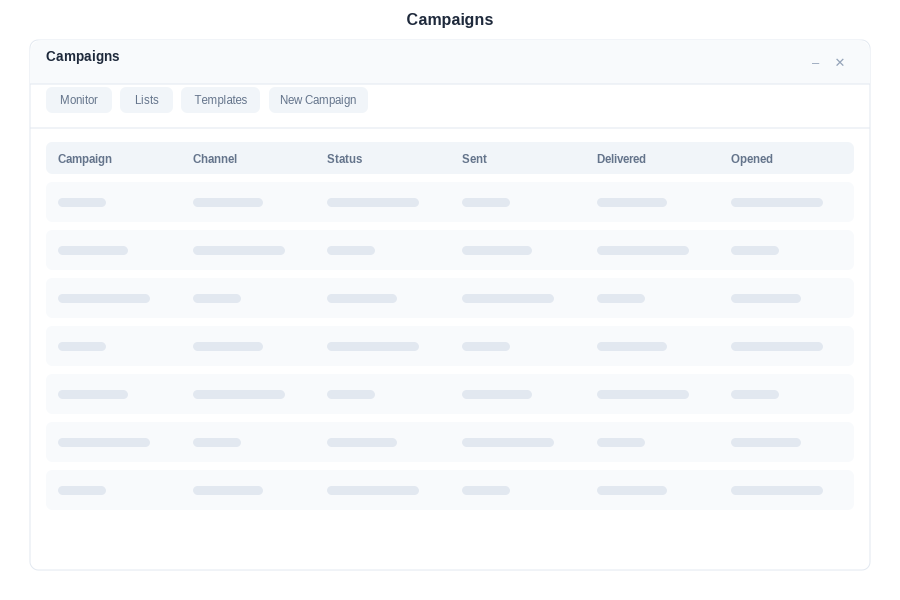
Campaigns is the marketing studio: it builds campaigns across channels and reports delivery, opens, clicks and replies.

Open it
| Task | Where | Label you will see |
|---|---|---|
| Open the app | Desktop launcher, after Preview mode is on | Campaign Studio |
| Switch areas | Tab strip | Monitor, Lists, Templates |
| Start a campaign | Header action | New Campaign |
| Filter the monitor | Channel filter | All, 📧 Email, 📸 Instagram, 📘 Facebook |
- Turn on Preview mode in the sidebar.
- Click Start, then Campaigns.
Do this
| Task | Control | Label you will see |
|---|---|---|
| Read campaign results | Monitor table | Campaign, Status, Delivered, Opened, Clicked, Replied |
| Add a recipient list | Lists tab | New List, Create List, Delete List, Import |
| Add a message template | Templates tab | New Template |
| Publish to a channel | Publish dialog | 🚀 Publish Campaign, Recipient list, Channels, 📸 Instagram (feed post), 🚀 Publish |
| Generate an image | AI dialog | 🖼 AI Image Generator, Prompt, Style, 🖼 Generate |
| Write copy | AI dialog | ✨ AI Content Writer, Goal, Audience, Tone, Length, ✨ Generate |
Limits
- The channel filters are the three shown above; the page names no other delivery channel.
- The segment preview in the list builder is labelled SAMPLE DATA — OFFLINE ESTIMATE (not from server); it is not a live count.
- Publishing is an explicit action; creating a campaign does not send it.