Mail 🟡 PREVIEW (advanced) - Email Client
What it is
Mail is the email client: folders, labels, signatures, rules and templates, with scheduling and automatic replies.

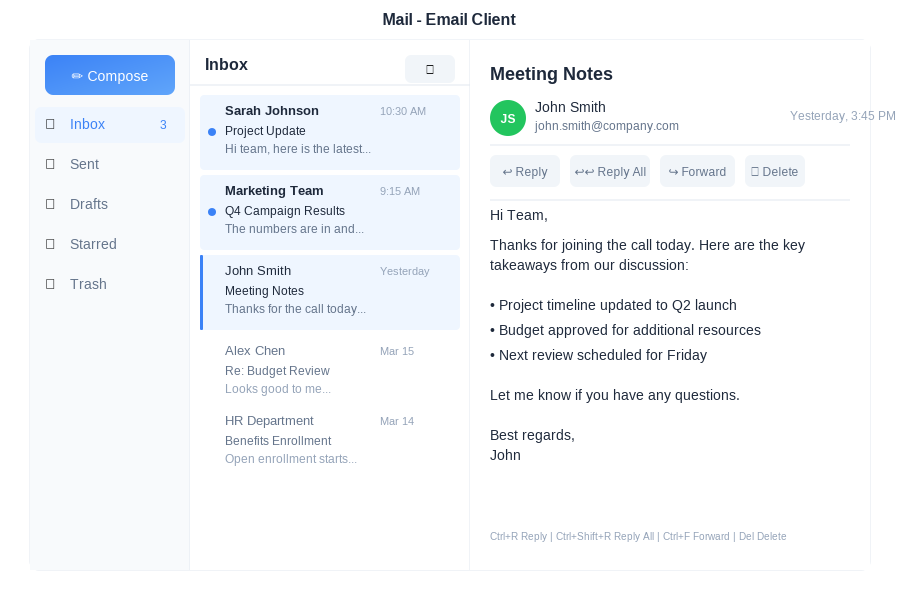
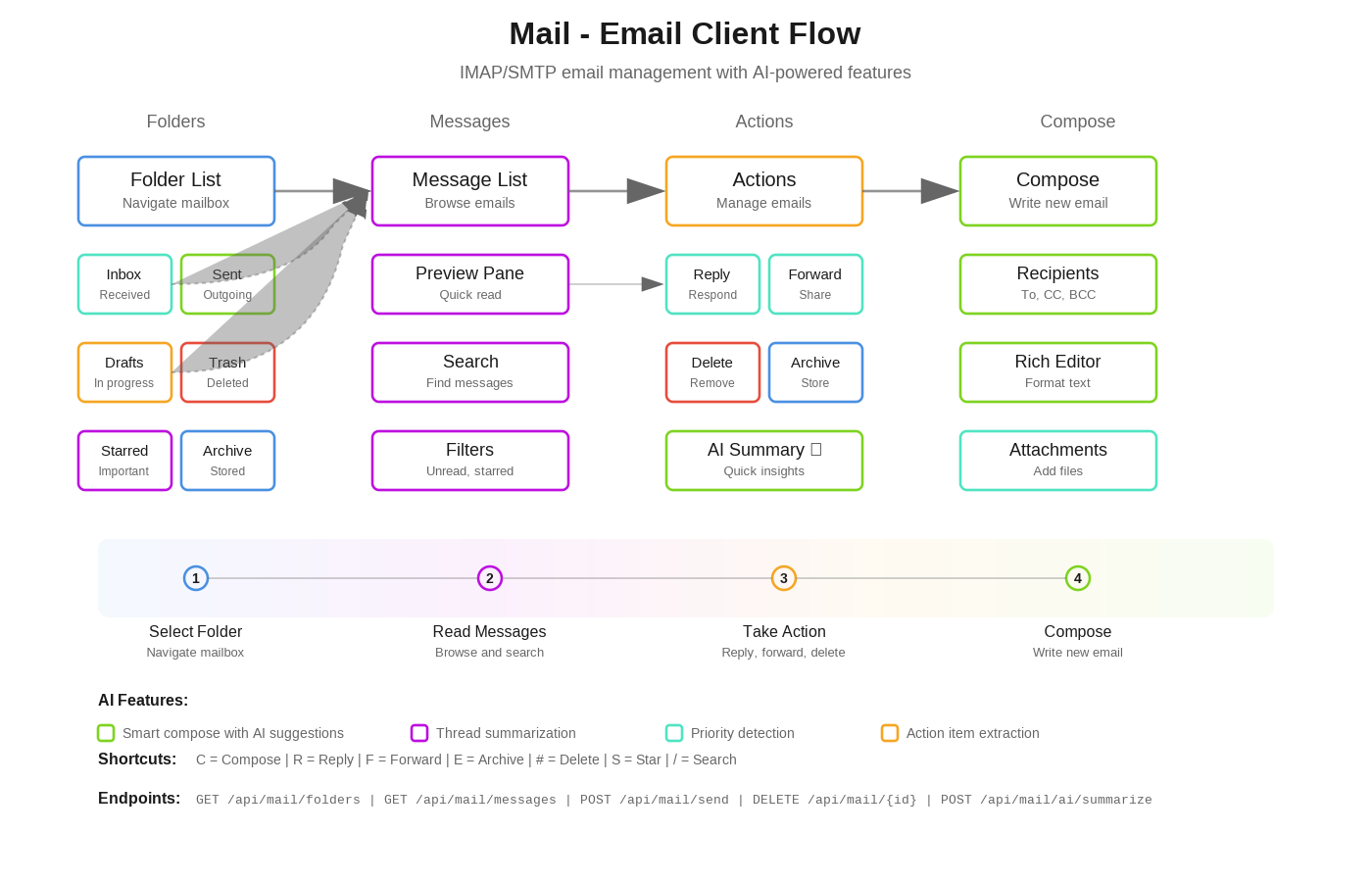
Open it
| Task | Where | Label you will see |
|---|---|---|
| Open the app | Desktop launcher | |
| Read folders | Sidebar | Inbox, Sent, Drafts |
| Start a message | Header action | Compose |
- Click Start, then Mail.
- Choose Inbox, Sent or Drafts.
Do this
| Task | Control | Label you will see |
|---|---|---|
| Organise mail | Settings dialog | Manage Labels, Label Name, Color, Create |
| Add a signature | Settings dialog | New Email Signature, Signature Name, HTML Content, Save |
| Add a rule | Settings dialog | New Email Rule, Rule Name, Condition (Sender contains), Action |
| Add a template | Settings dialog | New Email Template, Template Name, Subject, Body HTML |
| Act on a message | Message actions | Archive, Star, Delete |
| Set automatic replies | Settings dialog | Automatic Replies, Send automatic replies, Start date, End date, Message |
| Send later | Compose dialog | Schedule Send, Date, Time, Schedule |
| Restrict replies | Compose dialog | Send only to people in my organization |
Limits
- Delivery needs the mail server (Stalwart). A fixed image without that component hides the app instead of showing an empty pane.
- The rule condition shown is Condition (Sender contains); the page documents no other condition type.
- Schedule Send is a composer action; the page names no delivery guarantee for it.