Database 🟡 PREVIEW - Schema Browser
What it is
Database is a schema browser and SQL workspace: inspect tables, run a query and import or export CSV.

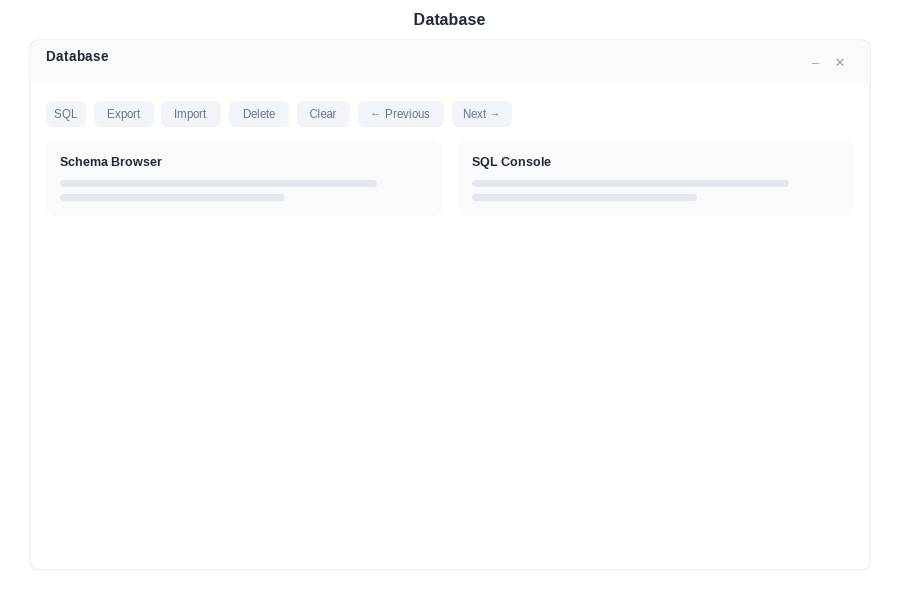
Open it
| Task | Where | Label you will see |
|---|---|---|
| Open the app | Desktop launcher, after Preview mode is on | Database |
| Pick a table | Schema panel | Schema Browser, Select a table |
- Turn on Preview mode in the sidebar.
- Click Start, then Database.
- Select a table to browse its rows.
Do this
| Task | Control | Label you will see |
|---|---|---|
| Create a table | Header action | + New Table, Create New Table, Table Name, Columns, + Add Column, Create Table |
| Open the SQL console | Toolbar | SQL, SQL Console, Execute (Ctrl+Enter), EXPLAIN |
| Move through rows | Pager | ← Previous, Page 1 of 1, Next → |
| Change a row | Row action | Edit Row, Save, Delete |
| Bring in data | Toolbar | Import, Import CSV, Select CSV file |
| Take data out | Toolbar | Export |
Limits
- The SQL console is a query surface; it does not document a migration workflow.
- The pager reads Page 1 of 1 when there is a single page; the page names no page-size setting.
- A failed connection shows Service unavailable rather than a stale grid.