Editor 🟡 PREVIEW
What it is
Editor is the suite's code workspace: a file tree and a source editor with an AI improvements panel.

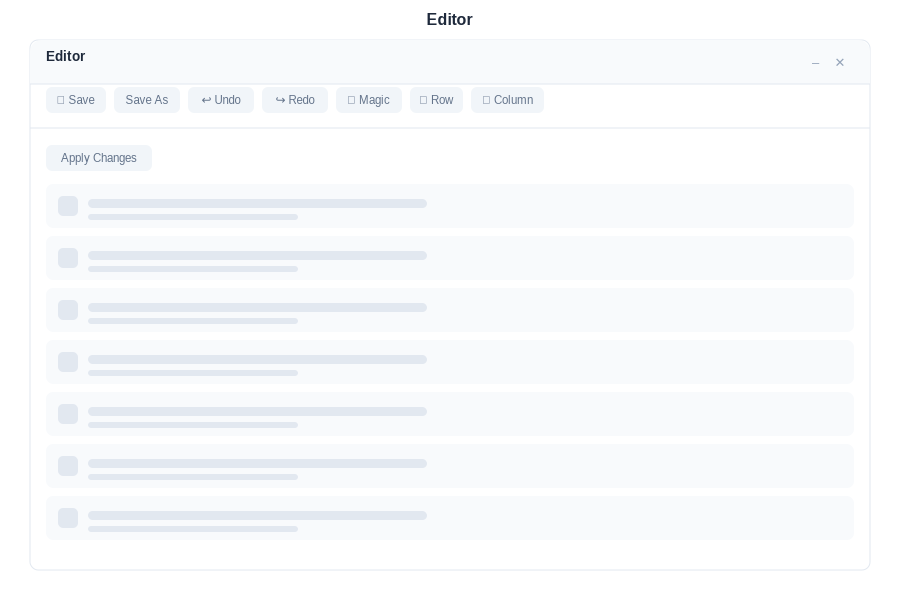
Open it
| Task | Where | Label you will see |
|---|---|---|
| Open the app | Desktop launcher, after Preview mode is on | Editor |
| Pick a project | Workspace header | No project selected. |
- Turn on Preview mode in the sidebar.
- Click Start, then Editor.
- Select a project before editing a file.
Do this
| Task | Control | Label you will see |
|---|---|---|
| Refresh the file tree | Tree header action | ↻ |
| Read file types | Editor tab | 📄 Plain Text |
| Read the cursor position | Status bar | Ln 1, Col 1 |
| Ask for AI changes | Panel | ✨ AI Improvements, Analyzing code... |
| Read an untitled buffer | Document title | Untitled |
Limits
- With no project selected the workspace shows No project selected. — there is no file to open.
- The loading and unavailable states read Loading editor… / Editor unavailable; they are not editing features.
- The editor does not declare a language-model choice on this surface.