Project 🟡 PREVIEW - Project Management
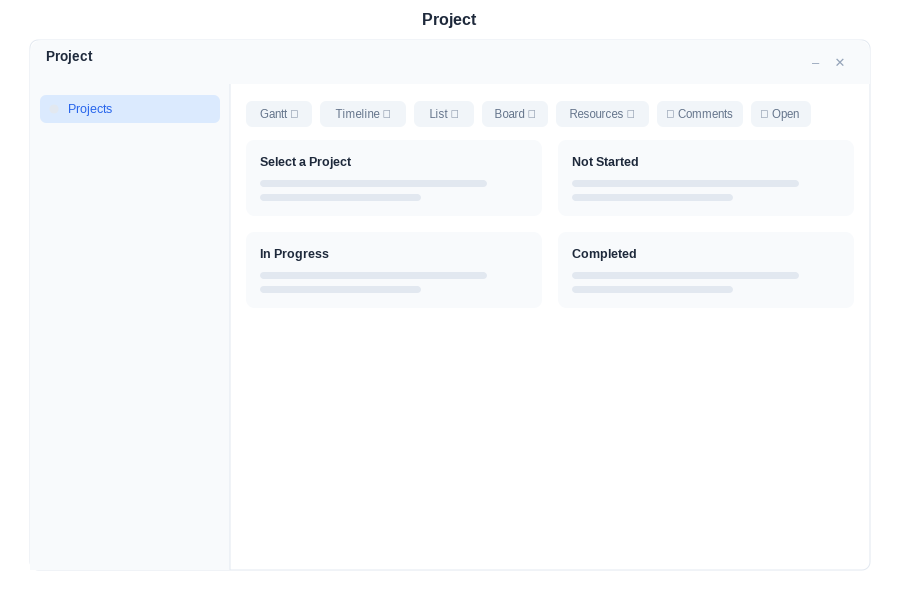

What it is
Project plans work in phases and deliverables (registry description for project).
Open it
The registry lists project as preview-only. Turn on Preview mode, click Start, type Project and select its tile; see Find an app.
Do this
| Task | Label you will see |
|---|---|
| Create and find | New Project, Search projects..., Loading projects... |
| Follow progress | Planning, Active, On Hold, Completed, Cancelled, Progress: |
| Work on tasks | Task Name, Duration, Progress, Assignee, Not Started, In Progress, Start |
| View the timeline | Week, Month, Quarter, Show Critical Path, Show Milestones, Fit to Screen |
| Take an action | 💬 Comments, 📂 Open, ⬇ Export |
- Open Projects and choose New Project, or use Search projects....
- Select a project and work through its tasks; Select a task to view details is the empty detail state.
- Use Week / Month / Quarter with Show Critical Path and Show Milestones on the timeline.
Limits
- No project selected, Select a project to view tasks and Select a project to view timeline are the app's own empty states.
- Preview-only: the registry assigns
projecttoLauncherVisibility::Preview. - Service unavailable is the app's message when the backing service cannot be reached.