Chat 🟢 GA - AI Assistant
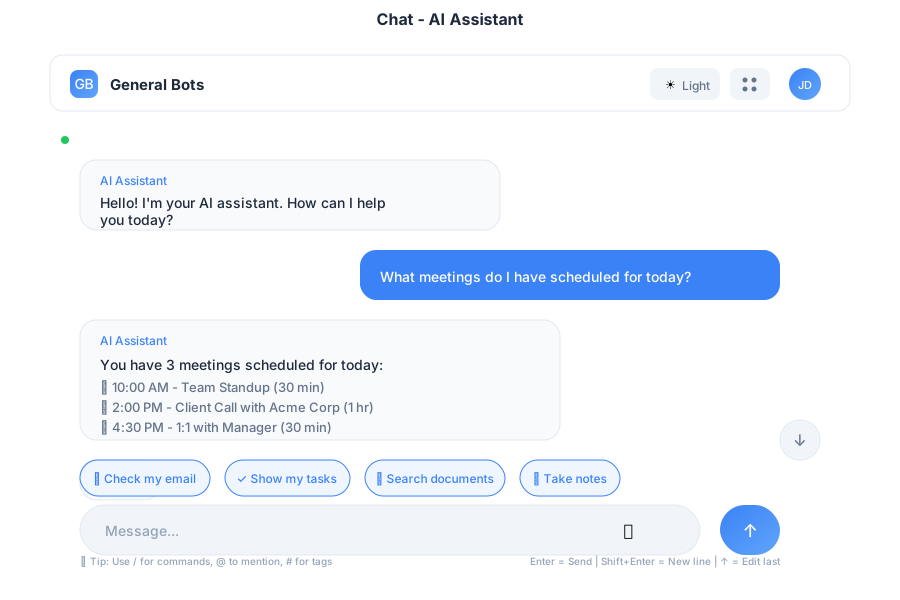
Your intelligent conversation partner
Overview
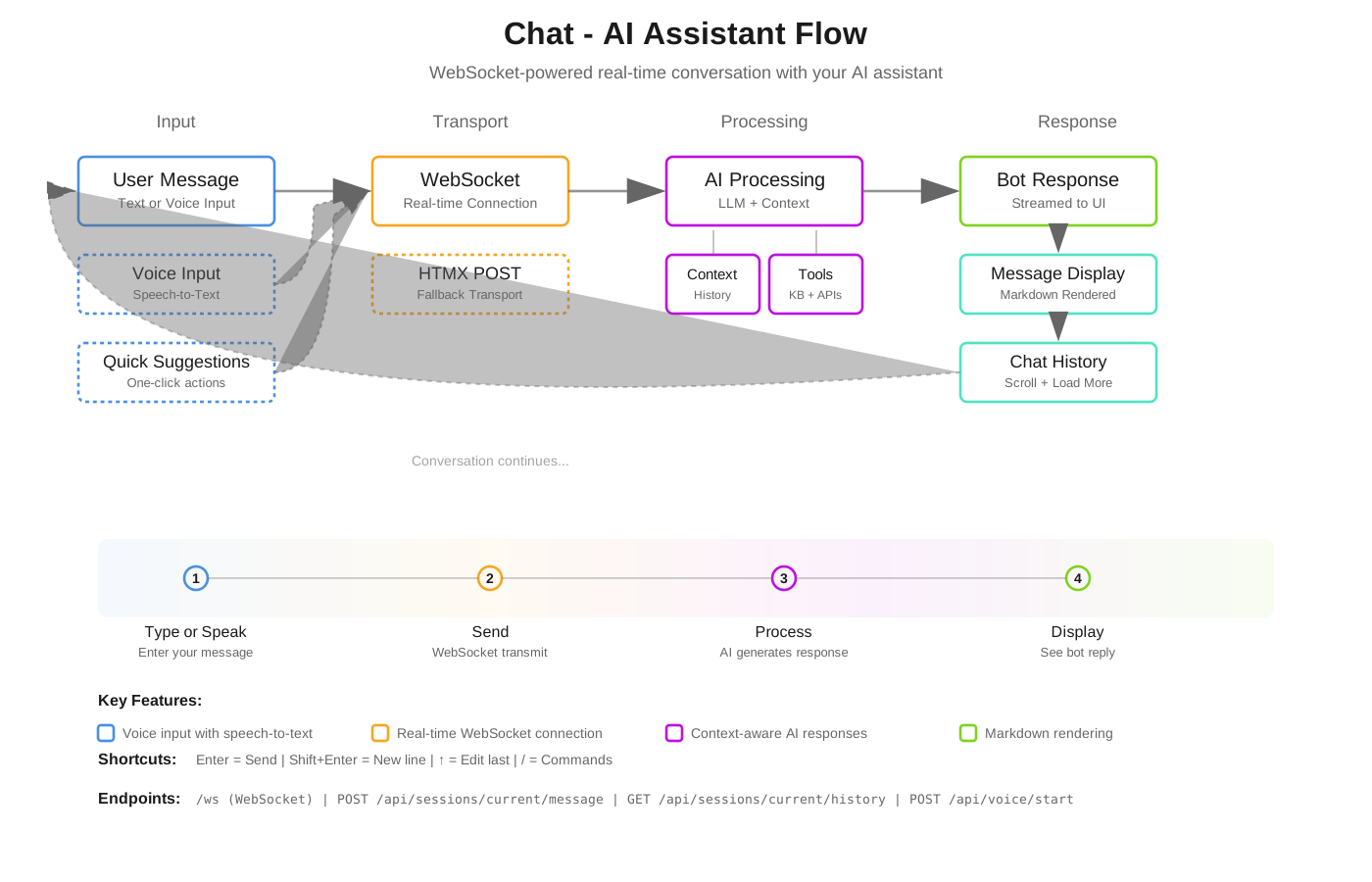
Chat is the heart of General Bots Suite - your AI-powered assistant that understands context, remembers conversations, and helps you get things done. Built with WebSocket for real-time communication and HTMX for seamless updates.
Features
Real-Time Messaging
Messages are sent and received instantly via WebSocket connection.
Voice Input
Click the microphone button to speak your message:
- Click 🎤 to start recording
- Speak your message clearly
- Click again to stop
- Message converts to text automatically
Quick Suggestions
Pre-built action chips for common requests:
| Chip | Action |
|---|---|
| 📊 Tasks | Show your task list |
| 📧 Check mail | Display unread emails |
| 📅 Schedule | Today’s calendar |
| ❓ Help | Available commands |
Response Format Switchers
Persistent toggle buttons that control how AI formats responses. Unlike suggestions, switchers stay active until deactivated and can be combined.
Available Format Options:
| ID | Label | Description | Example Use Case |
|---|---|---|---|
| tables | Tabelas | Responses as structured HTML tables | Comparisons, data summaries |
| infographic | Infográfico | Visual SVG and progress bar representations | Statistics, metrics, dashboards |
| cards | Cards | Card-based HTML layout with borders and shadows | Profiles, items, entities |
| list | Lista | Bulleted and numbered HTML lists | Steps, features, options |
| comparison | Comparação | Side-by-side HTML grid comparisons | Pros/cons, alternatives |
| timeline | Timeline | Chronological HTML timeline with border markers | History, events, milestones |
| markdown | Markdown | Standard CommonMark formatting | Documentation, code |
| chart | Gráfico | SVG charts (line, bar, pie, area) with axes and legends | Data visualization |
Custom Switchers: You can also add custom format instructions:
ADD SWITCHER "sempre mostrar 10 perguntas" AS "Mostrar Perguntas"
Using Switchers:
- Click any format chip to toggle it ON
- Active switchers are highlighted with their color
- Multiple switchers can be active simultaneously
- Click again to toggle OFF
- Format applies to all responses until deactivated
Example Workflow:
Technical Implementation:
- Switchers are defined in start.bas using:
ADD SWITCHER "id" AS "Label" - Standard switchers use predefined IDs that map to backend prompts
- Custom switchers allow any instruction string:
ADD SWITCHER "custom prompt" AS "Label" - Frontend injects active switcher prompts into every user message
- Prompts are prepended with “—” separator
- Bot passes the enhanced message directly to LLM (no parsing needed)
- LLM follows the REGRAS DE FORMATO instructions to format output
- State is maintained during conversation session
- Each format has distinct color coding for easy identification
- Multiple switchers can be active simultaneously (all prompts concatenated)
Message History
- Auto-loads previous messages on page open
- Scroll up to load older messages
- Click “Scroll to bottom” button to return to latest
Markdown Support
Bot responses support full Markdown rendering:
- Bold and italic text
code snippetsand code blocks- Bullet and numbered lists
- Links and images
- Tables
Keyboard Shortcuts
| Shortcut | Action |
|---|---|
Enter | Send message |
Shift+Enter | New line (without sending) |
↑ (Up arrow) | Edit last message |
/ | Open command menu |
Escape | Cancel current action |
API Endpoints
WebSocket Connection
ws://your-server:9000/ws
Message Types:
TEXT (1)- Regular text messagesVOICE (2)- Voice messagesCONTINUE (3)- Continue interrupted responsesCONTEXT (4)- Context changesSYSTEM (5)- System messages
REST Endpoints
| Endpoint | Method | Description |
|---|---|---|
/api/sessions | GET | List sessions |
/api/sessions/current/message | POST | Send message (current session) |
/api/sessions/current/history | GET | Get chat history (current session) |
/api/sessions/:id | GET | Get session details |
/api/sessions/:id/history | GET | Get chat history by ID |
/api/sessions/:id/start | POST | Start session |
/api/sessions/:id/end | POST | End session |
/api/voice/start | POST | Start voice recording |
/api/voice/stop | POST | Stop voice recording |
/api/voice/status | GET | Get voice status |
Note: The frontend uses
/api/sessions/current/*endpoints which resolve to the active session automatically.
Example Conversations
Getting Information
Creating Tasks
Drafting Emails
Accessibility
- Full keyboard navigation
- Screen reader announcements for new messages
- High contrast mode support
- Adjustable font sizes
- ARIA labels on all interactive elements
Troubleshooting
Messages Not Sending
- Check connection status indicator
- Verify WebSocket is connected
- Try refreshing the page
- Check browser console for errors
Voice Not Working
- Allow microphone permissions in browser
- Check device microphone settings
- Try a different browser
- Ensure HTTPS connection (required for voice)
History Not Loading
- Check network connection
- Verify API endpoint is accessible
- Clear browser cache
- Check for JavaScript errors
See Also
- HTMX Architecture — How Chat uses HTMX
- Suite Manual — Complete user guide
- Tasks App — Create tasks from chat
- Mail App — Email integration