Mail 🟡 PREVIEW (advanced) - Email Client
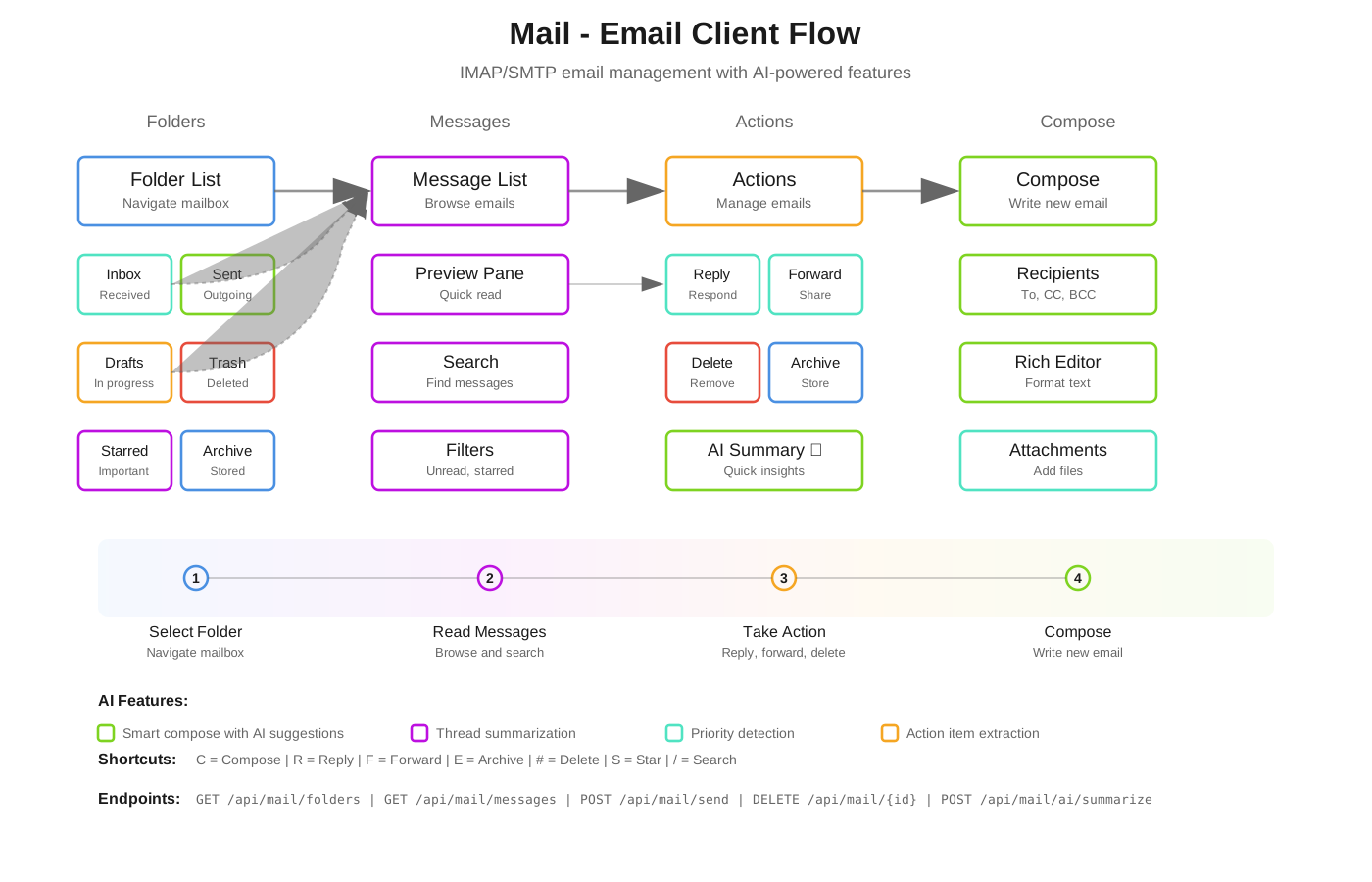
Your intelligent inbox
Preview — advanced. Mail is functional and close to stable, but is not yet part of the supported surface. It is the most advanced of the larger preview apps, alongside Sheets.
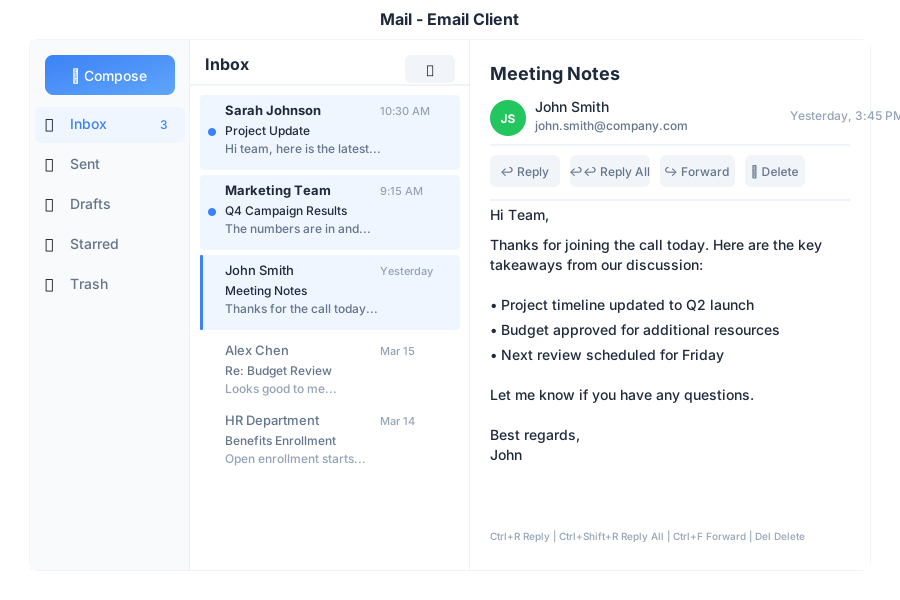
Overview
Mail is the email application in General Bots Suite. Read, compose, and organize your emails with AI assistance. Mail helps you write better emails, find important messages, and stay on top of your inbox without the clutter.
Features
Folders
| Folder | Description |
|---|---|
| 📥 Inbox | Incoming messages |
| ⭐ Starred | Important emails |
| 📤 Sent | Sent messages |
| 📝 Drafts | Unsent drafts |
| 🗑️ Trash | Deleted emails |
Labels
| Label | Icon | Use For |
|---|---|---|
| Urgent | 🔴 | Time-sensitive |
| Personal | 🟢 | Private emails |
| Work | 🔵 | Professional |
| Finance | 🟡 | Bills & money |
| Custom | 🟣 | Create your own |
Email Actions
| Action | Description |
|---|---|
| Reply | Respond to sender |
| Reply All | Respond to all recipients |
| Forward | Send to someone else |
| Archive | Remove from inbox |
| Star | Mark as important |
| Label | Organize with labels |
| Delete | Move to trash |
Keyboard Shortcuts
| Shortcut | Action |
|---|---|
C | Compose new email |
R | Reply |
A | Reply all |
F | Forward |
E | Archive |
S | Star/unstar |
Delete | Move to trash |
Ctrl+Enter | Send email |
Escape | Close/cancel |
↑ / ↓ | Navigate emails |
Email via Chat
Checking Your Inbox
Reading an Email
Composing an Email
AI-Assisted Writing
Searching Emails
API Endpoints
| Endpoint | Method | Description |
|---|---|---|
/api/email/inbox | GET | List inbox messages |
/api/email/send | POST | Send email |
/api/email/draft | POST | Save draft |
/api/email/:id | GET | Read email |
/api/email/:id | DELETE | Delete email |
/api/email/:id/star | POST | Toggle star |
/api/email/:id/label | POST | Add label |
/api/email/search | GET | Search emails |
Query Parameters
| Parameter | Values | Default |
|---|---|---|
folder | inbox, sent, drafts, trash, starred | inbox |
label | Label name | none |
unread | true, false | none |
limit | 1-100 | 25 |
offset | Number | 0 |
Send Email Request
{
    "to": ["john@company.com"],
    "cc": [],
    "bcc": [],
    "subject": "Project Update",
    "body": "Hi John,\n\nHere's the latest update...",
    "attachments": ["file-id-123"]
}
Email Response
{
    "id": "msg-456",
    "from": "sarah@company.com",
    "to": ["you@company.com"],
    "subject": "Q2 Report Review",
    "body": "Hi,\n\nPlease review the attached...",
    "date": "2025-05-15T10:32:00Z",
    "read": false,
    "starred": true,
    "labels": ["work"],
    "attachments": [
        {
            "id": "att-789",
            "name": "Q2-Report.pdf",
            "size": 2457600
        }
    ]
}
Connecting a Mailbox
The Mail application supports two ways of authenticating a mailbox, and the account form offers both.
Password (IMAP/SMTP)
Fill in the mailbox address, the password and the IMAP/SMTP hosts. The accounts is verified against the server before it is stored, so a host that cannot be reached is rejected with the reason instead of appearing as an empty inbox. A mailbox that requires an app password (Gmail with two-factor authentication, for example) is added the same way, using the app password.
Provider sign-in (Microsoft 365, Outlook.com, Gmail)
Microsoft no longer accepts a password over IMAP/SMTP, so those mailboxes are connected through the provider’s own consent screen:
- Enter the mailbox address in the account form.
- Choose Connect Microsoft 365 or Connect Google.
- Approve the requested mail scopes on the provider’s page.
The refresh token is stored with the account, so the connection is renewed in the background and the mailbox keeps syncing without a new sign-in.
An administrator configures the client credentials and the signing secret:
MAIL_OAUTH_MICROSOFT_CLIENT_ID / MAIL_OAUTH_MICROSOFT_CLIENT_SECRET
MAIL_OAUTH_GOOGLE_CLIENT_ID / MAIL_OAUTH_GOOGLE_CLIENT_SECRET
MAIL_OAUTH_STATE_SECRET
MAIL_OAUTH_REDIRECT_BASE   # optional, defaults to the request host
Sync Health
Every account shows a Sync error badge while the last background pass failed. Hover the badge for the reason. Without it an unreachable mailbox was indistinguishable from an empty one.
Configuration
Configure email defaults in config.csv:
key,value
smtp-server,smtp.gmail.com
smtp-port,587
imap-server,imap.gmail.com
imap-port,993
email-from,Your Name <you@gmail.com>
Troubleshooting
Emails Not Loading
- Check internet connection
- Verify email credentials
- Check IMAP settings
- Look for the Sync error badge on the account and read its reason
- Refresh the page
Send Fails
- Check recipient address
- Verify SMTP settings
- Check attachment size (max 25MB)
- Try again in a moment
Missing Emails
- Check spam/junk folder
- Verify filters aren’t hiding emails
- Check trash folder
- Sync may take a few minutes
Integration Features
Snooze
Hide an email until later. Click the snooze button in the toolbar to pick a time (later today, tomorrow, next week). The email reappears automatically at the chosen time via POST /api/email/snooze.
CRM Panel
When viewing an email, the CRM panel automatically looks up the sender via GET /api/crm/contact/by-email/:email and shows linked deals. Click Log to CRM to record the email against a contact or opportunity.
AI Lead Suggestion
If the email looks like a sales inquiry, an AI banner appears offering to create a lead via POST /api/ai/extract-lead.
Campaign Actions
Add the sender to a marketing list directly from the email via POST /api/crm/lists/:id.
Smart Replies
AI-suggested short replies appear below the email content.
Enabling Mail
Add mail to apps= in botserver/.product:
apps=...,mail
See Also
- Suite Manual - Complete user guide
- Chat App - Send quick emails via chat
- Email API - API reference
- SEND MAIL Keyword - BASIC integration
- Intelligent Email Triaging - LLM-powered email classification & calendar conflict resolution