Suite Apps 🟡 PREVIEW
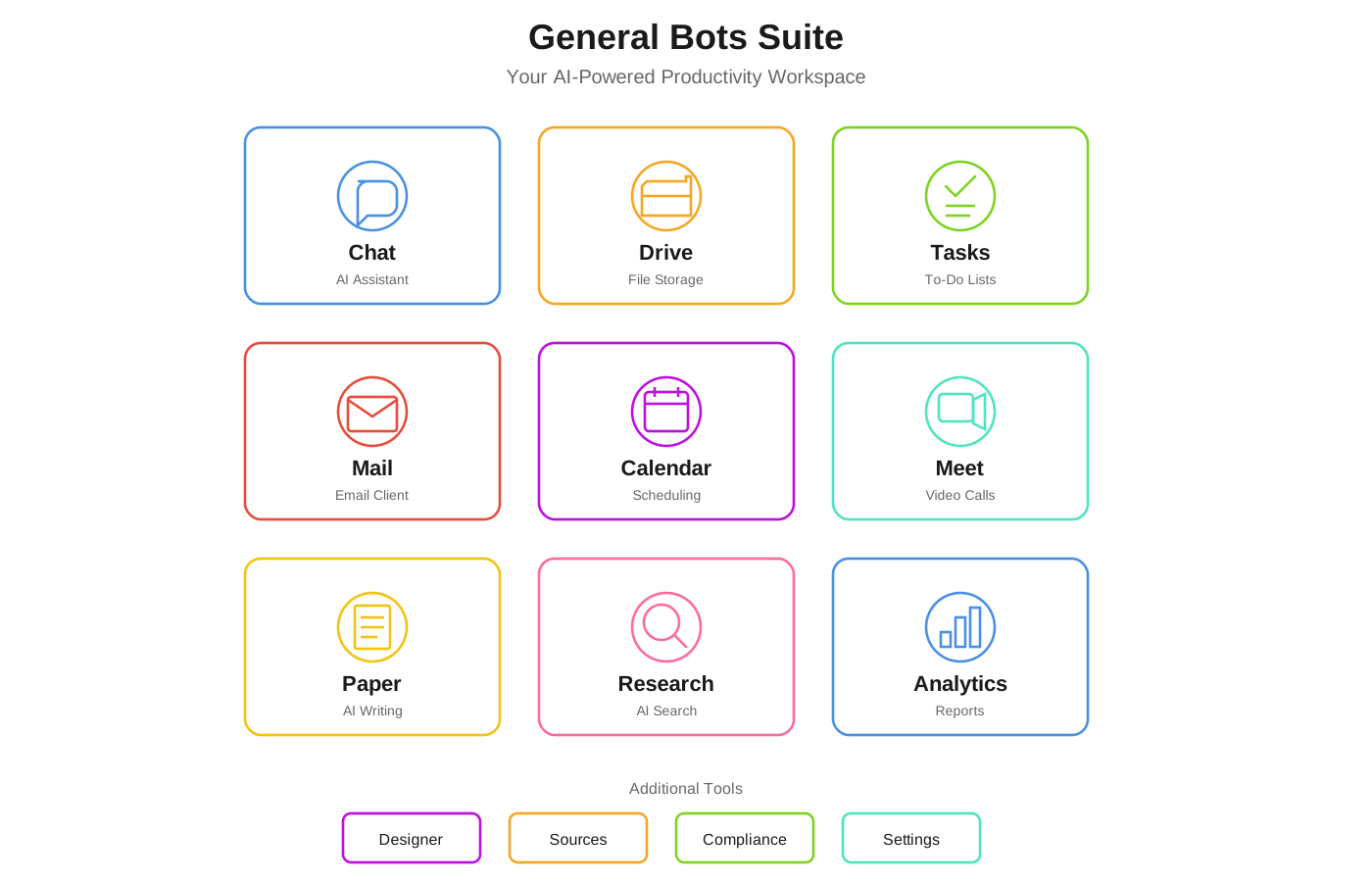
Everything you need, all in one place
What is stable, and what is preview
The suite ships one stable surface and many preview applications. This distinction matters when you decide what to put in front of real users.
Every app page carries its status in the title, so you never have to guess:
| Marker | Meaning | Apps |
|---|---|---|
| 🟢 GA | Supported. Safe to depend on. | Chat, Explorer (Drive), Vibe |
| 🟡 PREVIEW (advanced) | Functional and close to stable, but not yet supported. | Mail, Sheets |
| 🟡 PREVIEW — IN TEST | Under active test. Behaviour and interface may change. | Docs, Slides |
| 🟡 PREVIEW | Usable, but not yet supported. | Every other app in the catalog |
Preview applications are installed and working — they are simply withheld from the launcher and the sidebar until you turn on the Preview switch. That switch lives in the left sidebar and is remembered per browser.
In the shipped configuration only Chat, Explorer and Vibe appear by default. Everything else is declared in the preview_apps list of the .product file; see Product configuration for how to promote an app.
The stable apps
| App | What It Does |
|---|---|
| 💬 Chat | Talk to your AI assistant |
| 📁 Explorer | Store and organize your files |
| ⚡ Vibe | Build and run agents as a project |
Preview apps worth knowing about
These are the most complete of the preview applications:
| App | What It Does |
|---|---|
| Send and receive email with AI triage | |
| 📊 Sheets | Spreadsheets with formulas, charts, filtering and CSV/XLSX import-export |
| 📅 Calendar | Schedule meetings and events |
| 🎥 Meet | Video calls with your team |
| 📝 Paper | Write documents with AI help |
| ✅ Tasks | Task management with Autotask execution |
| 🔍 Research | Search and discover across web, docs and knowledge bases |
| 🎬 Player | Watch videos and listen to audio |
| ⚙️ Automations | Natural-language scheduled agents |
Quick Access
Keyboard shortcuts to open apps fast:
| Press | Opens |
|---|---|
Alt + 1 | Chat |
Alt + 2 | Explorer |
Alt + 3 | Tasks |
Alt + 4 | |
Alt + 5 | Calendar |
Alt + 6 | Meet |
Tips
- Turn on Preview mode to reach the remaining applications.
- Switch apps quickly — use the app menu or the keyboard shortcuts.
- Stay in one place — all your work is saved automatically.
- Ask for help — the Chat app can help you with any app.
App Guides
Learn more about each app:
- Chat - Talk to your AI assistant
- Drive - Manage your files
- Vibe - Build agents as a project
- Mail - Handle your email
- Sheets - Work with spreadsheets
- Docs - Documents (in test)
- Slides - Presentations (in test)
- Tasks - LLM-powered intelligent execution
- Calendar - Manage your schedule
- Meet - Join video calls
- Player - Play media files
- Paper - Write with AI
- Research - Search smarter
- Analytics - See your data
Coverage
For the full list of applications and which of them are documented, see Suite Apps Status.
Need Help?
Just ask in Chat: “How do I use [app name]?”
Your AI assistant knows all the apps and can guide you step by step.