Migrating BotServer to LXC Containers 🟡 BETA
This guide explains how to migrate botserver to connect with already-running LXC containers. This setup allows General Bots to control containers directly. This is useful when you need to reinstall or update botserver while keeping your existing services running.
Overview
When working with LXC containerized deployments, you may need to:
- Migrate botserver to existing LXC containers
- Update botserver binary while LXC containers continue running
- Reconnect to an existing stack after a fresh botserver installation
- Recover from a corrupted botserver installation
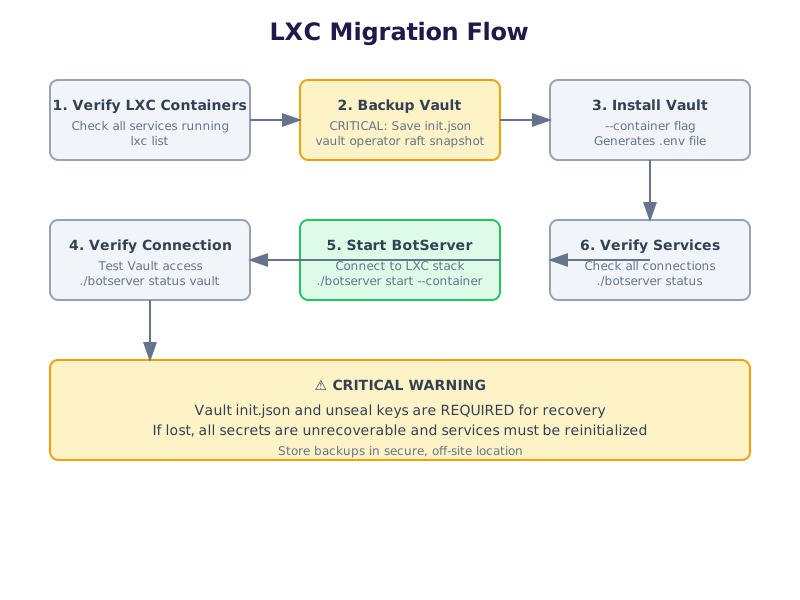
⚠️ Critical Warning
Vault data loss is permanent and unrecoverable!
Before proceeding:
-
Backup Vault init.json
# Copy to secure location cp botserver-stack/conf/vault/init.json /secure/backup/ -
Backup Vault unseal keys
# Create raft snapshot vault operator raft snapshot save backup.snap -
Store backups securely
- Use encrypted storage
- Keep multiple copies
- Document backup locations
- Test restoration process
If Vault init.json or unseal keys are lost, all secrets are unrecoverable and services must be reinitialized from scratch.
Migration Process
The key is to install only Vault with the --container flag to generate the .env file and establish connection to existing LXC containers.
Note: This guide assumes LXC containers are already running on your host system. You only need to install the LXC CLI tools to control them by proxy.
Installing LXC CLI Tools
Install only the LXC client tools to control remote LXC containers by proxy:
# Install LXC client tools
apt update
apt install -y lxd-client

# Verify installation
lxc --version
Note: The lxd-client package provides the lxc command. This installs only the CLI tools, not the full LXC/LXD server. The tools will connect to the host LXC daemon through the device proxy.
Prerequisites
Before migrating, verify:
- All LXC containers are running and healthy
- You have access to the LXC container environment
- Network connectivity between botserver and LXC containers
- Vault LXC container is accessible
- Vault init.json and unseal keys are backed up
# Check LXC container status
lxc list

# Check specific containers
lxc info vault
lxc info postgres
lxc info minio
lxc info redis
lxc info zitadel
Step 1: Verify Container Status
Ensure all required LXC containers are running:
# Check Vault
curl -k https://localhost:8200/v1/sys/health

# Check PostgreSQL
pg_isready -h localhost -p 5432

# Check MinIO
curl http://localhost:9000/minio/health/live

# Check Redis/Valkey
redis-cli -h localhost -p 6379 ping
Step 2: Backup Vault Data
Before proceeding, create a complete Vault backup:
# Backup init.json
cp botserver-stack/conf/vault/init.json /secure/backup/vault-init.json

# Create raft snapshot
export VAULT_ADDR=https://localhost:8200
export VAULT_TOKEN=$(grep VAULT_TOKEN .env | cut -d= -f2)
vault operator raft snapshot save /secure/backup/vault-snapshot.snap

# Verify backup
ls -lh /secure/backup/
Step 3: Install Vault with –container Flag
When other LXC containers are already running, install only Vault to generate the .env file:
# Navigate to botserver directory
cd /path/to/botserver

# Install Vault in container mode
./botserver bootstrap --container vault
This command will:
- Download and install Vault binary
- Generate TLS certificates
- Create Vault configuration
- Initialize Vault
- Generate the
.envfile with Vault credentials
Important: This only installs Vault and does not affect other running LXC containers.
Step 4: Verify .env File Creation
After installation, verify the .env file was created:
# Check .env file exists
cat .env

# Expected content:
# VAULT_ADDR=https://localhost:8200
# VAULT_TOKEN=<root_token>
# VAULT_CACERT=./botserver-stack/conf/system/certificates/ca/ca.crt
# VAULT_CACHE_TTL=300
Step 5: Verify Vault Connection
Test the connection to Vault:
# Test Vault connection
./botserver status vault

# Or manually test
export VAULT_ADDR=https://localhost:8200
export VAULT_TOKEN=$(grep VAULT_TOKEN .env | cut -d= -f2)
export VAULT_CACERT=./botserver-stack/conf/system/certificates/ca/ca.crt

vault status
Step 6: Start BotServer
Now start botserver with the container flag:
# Start botserver in container mode
./botserver start --container
Botserver will:
- Read configuration from
.envfile - Connect to running Vault
- Retrieve secrets for other services
- Establish connections to all running LXC containers
Step 7: Verify All Connections
Check that botserver is properly connected to all services:
# Check overall status
./botserver status

# Check specific services
./botserver status vault
./botserver status tables
./botserver status drive
./botserver status cache
./botserver status directory
Troubleshooting
Vault Connection Failed
Symptom: Cannot connect to Vault after installation
Solution:
# Check Vault LXC container is running
lxc list | grep vault
lxc info vault

# Check Vault logs
lxc exec vault -- tail -100 /var/log/vault.log

# Verify .env file
cat .env

# Test connection manually
curl -k https://localhost:8200/v1/sys/health
.env File Not Generated
Symptom: .env file missing after installation
Solution:
# Check installation logs
tail -100 botserver-stack/logs/vault.log

# Reinstall Vault
rm -rf botserver-stack/conf/vault/init.json
./botserver bootstrap --container vault
Secrets Not Found
Symptom: Botserver cannot retrieve secrets from Vault
Solution:
# Verify Vault is unsealed
vault status

# Check secrets exist
vault kv list gbo/

# If missing, restore from backup
vault operator raft snapshot restore /secure/backup/vault-snapshot.snap
Container Network Issues
Symptom: Cannot reach LXC containers from botserver
Solution:
# Check network configuration
lxc network list
lxc network show <network_name>

# Verify botserver can reach containers
lxc exec vault -- ping <botserver_ip>
lxc exec postgres -- ping <botserver_ip>

# Check DNS resolution
nslookup vault
nslookup postgres
nslookup minio

# Verify container IPs
lxc list --format json | jq -r '.[] | "\(.name): \(.state.network.eth0.addresses[0].address)"'
Best Practices
-
Always backup before migrating
# Backup Vault data vault operator raft snapshot save backup.snap # Backup PostgreSQL pg_dump $DATABASE_URL > backup.sql -
Document your LXC configuration
- Keep track of container names and networks
- Document port mappings
- Note any custom configurations
-
Test in staging first
- Verify migration process in non-production environment
- Test all service connections
- Verify data integrity
-
Monitor logs during migration
# Watch botserver logs
tail -f botserver-stack/logs/botserver.log

# Watch Vault logs
tail -f botserver-stack/logs/vault.log
Advanced Scenarios
Migrating After Complete Reinstallation
If you’ve completely reinstalled botserver:
# 1. Stop botserver
./botserver stop

# 2. Remove botserver files (keep LXC containers running)
rm -rf botserver-stack/bin/botserver
rm -f .env

# 3. Reinstall botserver
./botserver install

# 4. Migrate to LXC containers
./botserver bootstrap --container vault
./botserver start --container
Enabling Host Control (Brother Mode)
If you are running BotServer inside a container (e.g. system) and need it to control the host LXC daemon:
1. Identify the Host Socket Path Check where the LXD socket is located on your host:
ls -la /var/snap/lxd/common/lxd/unix.socket 2>/dev/null || ls -la /var/lib/lxd/unix.socket
2. Add the Proxy Device
Use the path found above. For standard installations (/var/lib/lxd/unix.socket):
lxc config device add system lxd-sock proxy connect=unix:/var/lib/lxd/unix.socket listen=unix:/tmp/lxd.sock bind=container uid=0 gid=0 mode=0660
For Snap installations (/var/snap/lxd/common/lxd/unix.socket):
lxc config device add system lxd-sock proxy connect=unix:/var/snap/lxd/common/lxd/unix.socket listen=unix:/tmp/lxd.sock bind=container uid=0 gid=0 mode=0660
Switching Between LXC and Native Mode
To switch between LXC containerized and native deployments:
# From LXC to native
./botserver stop
./botserver bootstrap
./botserver start

# From native to LXC
./botserver stop
./botserver bootstrap --container vault
./botserver start --container
Managing LXC Containers
Useful LXC commands for managing your containers:
# List all containers with details
lxc list

# Start/stop/restart containers
lxc start <container_name>
lxc stop <container_name>
lxc restart <container_name>

# Execute commands in containers
lxc exec <container_name> -- <command>

# View container logs
lxc exec <container_name> -- journalctl -u <service_name>

# Monitor container resources
lxc info <container_name>
lxc list --format json | jq '.[] | {name: .name, cpu: .cpu, memory: .memory}'
Summary
Migrating botserver to running LXC containers is straightforward when you:
- Verify all LXC containers are healthy
- Backup Vault init.json and unseal keys
- Install only Vault with
--containerflag - Let botserver retrieve existing secrets
- Start botserver with
--containerflag
This approach allows you to:
- Update botserver without downtime
- Recover from corrupted installations
- Maintain data integrity
- Minimize service disruption
Remember: Vault data loss is permanent. Always backup before migrating!
For more information, see: